How to Forward Text Messages on iPhone (Step-by-Step)
Quick Answer: To forward text messages on your iPhone, download Forward SMS, open the Shortcuts app, create a Personal Automation with the "Message" trigger, add the Forward SMS action, then choose a destination — another phone number, an email address, a Slack channel, Microsoft Teams, Discord, or a webhook. Setup takes under 5 minutes and runs entirely on your iPhone.
How Do You Forward a Text Message on iPhone?
To forward a text message on iPhone, you have three options depending on whether you want to forward it once or set up automatic forwarding for every future text:
- Forward a single text message manually — open the Messages app, long-press the text, tap More, select the message, then tap the forward arrow in the bottom-right. Enter the recipient and send. This is the right answer if you just need to forward one text right now.
- Automatically forward every incoming text message — install Forward SMS and set up an iOS Shortcuts automation (described in detail below). Every future text matching your filter will forward without you doing anything.
- Forward a text message to email, Slack, or Teams — same automatic setup, but the destination is an inbox or chat channel instead of a phone number. See the destination-specific guides at the bottom of this article.
If you're asking "how do I forward a text?" in the one-off sense, the manual Messages-app flow above takes ten seconds. If you're asking how do you forward a text message automatically — the rest of this guide is for you.
How to Forward Text Messages from iPhone
There are three common ways to forward text messages from an iPhone, and which one you pick depends on where you want the messages to go:
- To other Apple devices on the same Apple ID — use Apple's built-in text message forwarding. This only works between iPhones, iPads, and Macs signed into the same Apple ID.
- To another phone number (any phone, including Android) — use Forward SMS + a Shortcuts automation. The receiving device does not need to be an iPhone.
- To email, Slack, Microsoft Teams, Discord, WhatsApp, or a webhook — also Forward SMS, with the destination configured per channel.
This guide walks through the second and third options — covering anything Apple's built-in forwarding can't do. The whole setup is one Shortcuts automation and takes about five minutes.
Heads up: Forward SMS is iPhone-only. If your source phone is Android, use AutoForward SMS or a similar Android-side app. Forwarding starts from the Shortcuts automation on your iPhone.
What is Phone-to-Phone SMS Forwarding?
Phone-to-phone SMS forwarding automatically sends copies of your text messages from one phone to another. Unlike Apple's iMessage forwarding (which requires the same Apple ID), Forward SMS works with any phone number, including Android devices. This is useful for sharing a work phone with your team, receiving messages on a backup device, or routing one phone's OTP and 2FA codes to a teammate without sharing the phone itself.
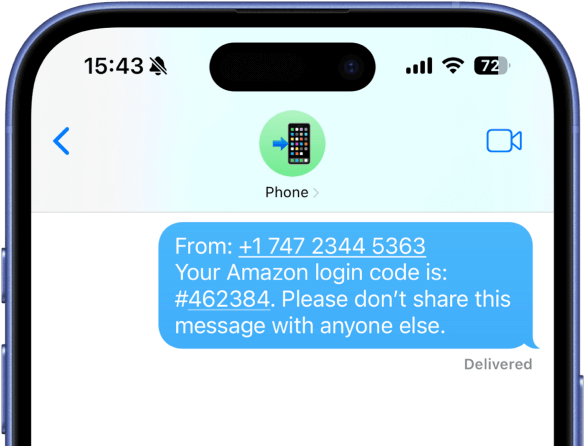
With the Forward SMS app and Apple's built-in  Shortcuts app, you can set up an automated system to forward your text messages to another phone, including Android phones or any other device that can receive SMS or RCS messages.
This guide will walk you through the process of setting up text message forwarding from your iPhone to another phone.
Download Forward SMS
First, download the Forward SMS app from the App Store. This app will handle the forwarding of your messages to another phone.
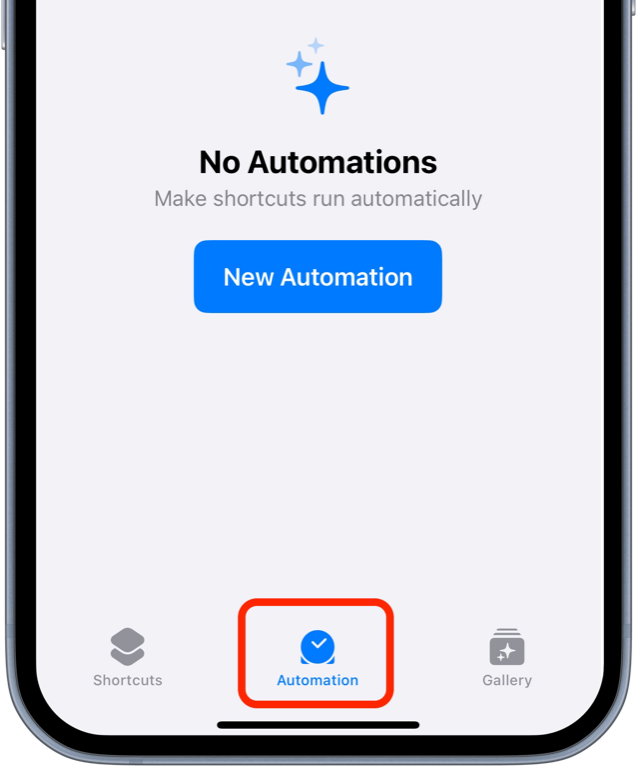
Step 1: Launch the Shortcuts App and Open Automations
Begin by opening the Shortcuts app on your iPhone, then tap on the Automation tab at the bottom.
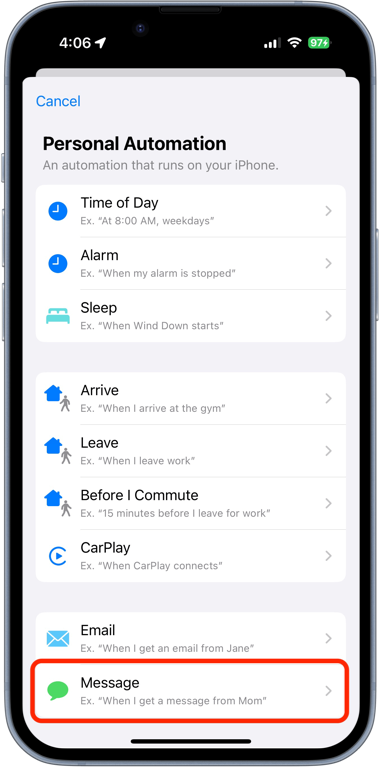
Step 2: Create a New Automation with a Message Trigger
Tap Create Personal Automation and select the Message trigger from the list of options.
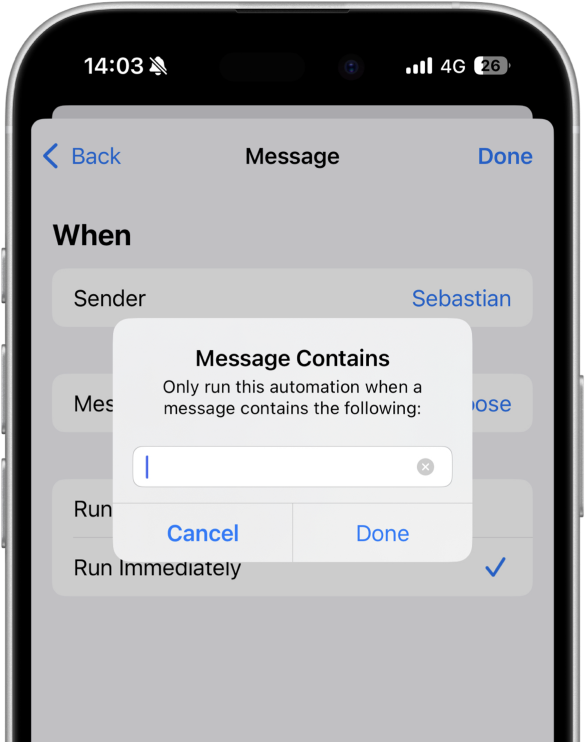
Step 3: Customize the Message Trigger
You can customize which messages to forward by setting specific filters:
Forward All Messages
Set the Message Contains condition to a single space (tap the space bar once) to forward all text messages or use a specific keyword like "verification code".
Forward Messages from Specific Senders
Use the Sender option to forward messages only from specific contacts or phone numbers.
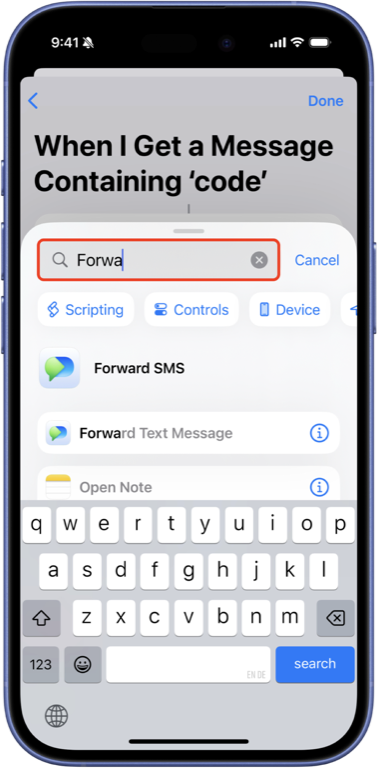
Step 4: Add the Forward SMS Action
After setting up the trigger, tap Next and then tap Add Action. Search for the "Forward SMS" action and select it to add it to your automation.
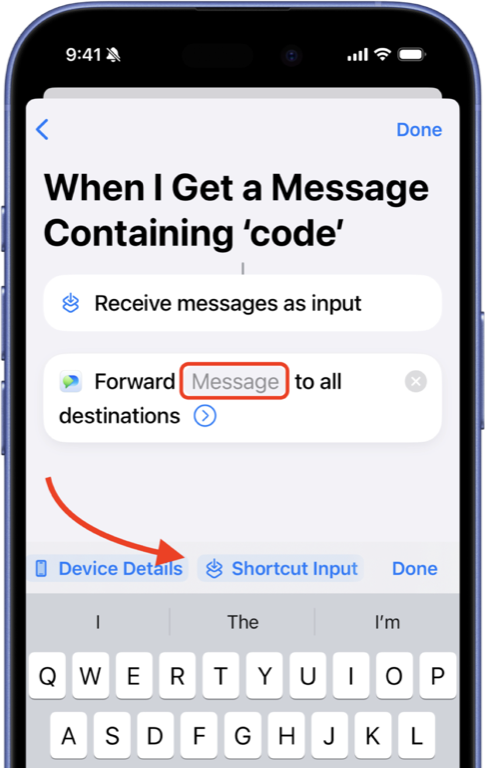
Step 5: Configure the Forwarding Action
Tap the Message field in the Forward SMS action. Scroll to the right on the toolbar above the keyboard and select Shortcut Input to use the incoming message as input.
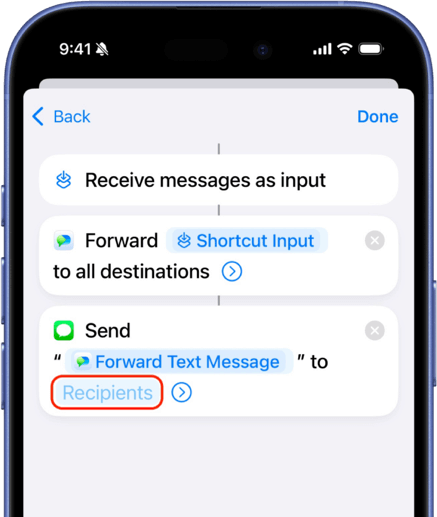
Step 6: Add the Send Message Action
After setting up the Forward SMS action, you need to add the "Send Message" action to forward the message to another phone:
- Tap the search bar at the bottom of the screen to add another action
- Search for Send Message and select it
- In the Recipients field, select the contact or enter the phone number of the device you want to forward messages to
Conclusion
By following these steps, you've learned how to forward a text message on iPhone — both manually for one-off forwarding and automatically for every incoming text. The automatic setup ensures you never miss important messages, even when using multiple devices.
To also forward the phone number and name of the sender, check out our guide on Sender and Contact Forwarding.
For other forwarding options, check out our other guides:
- Email Forwarding
- Slack Forwarding
- Discord Forwarding
- Microsoft Teams Forwarding
- WhatsApp Forwarding
- Webhook / API Forwarding
FAQ
How do you forward a text message on iPhone?
There are two ways. For a one-off, open Messages → long-press the text → More → select the message → tap the forward arrow → enter the recipient. For every future text, install Forward SMS and create an iOS Shortcuts automation with the Message trigger plus the Forward SMS action. The automatic path is what most people mean by "forwarding a text message" — once set up, every matching text forwards in the background, even when the iPhone is locked.
How do I forward a text on iPhone without doing it every time?
Use the iOS Shortcuts app with a Personal Automation triggered by the Message event. Pair it with the Forward SMS action and a destination action — Send Message, Send Email, or a Slack / Teams / Discord webhook. Once saved, every incoming text matching your filter is forwarded automatically, even when the iPhone is locked. No more long-pressing each message and tapping forward.
How do I forward a text message on iPhone automatically?
Use the iOS Shortcuts app with a Personal Automation triggered by the "Message" event. Pair it with the Forward SMS action and a destination action — Send Message, Send Email, or a Slack / Teams / Discord webhook. Once saved, every incoming text matching your filter is forwarded automatically, even when the iPhone is locked.
Can I forward text messages from iPhone to Android?
Yes. Use Forward SMS with the "Send Message" action and enter the Android phone number as the recipient. The forwarded text is sent as a standard SMS, so any phone that can receive SMS — including Android — can receive the forwarded message.
Does forwarding work when the iPhone is locked?
Yes. The Shortcuts automation runs in the background even when your iPhone is locked, as long as the phone has power and an internet or cellular connection. There is no need to unlock the phone for each forward.
How does Forward SMS handle message delivery?
Forward SMS runs from iOS Shortcuts on your iPhone and hands the message to the destination action you configure. Forward SMS does not store a copy of your messages, but delivery may use the destination provider's infrastructure, such as your email provider, Slack, Teams, WhatsApp, or the cellular network. Forward SMS does not work on Android because the automation depends on iOS Shortcuts.
How do I forward only specific text messages, not all of them?
In step 3, set the Message Contains filter to a keyword (e.g. verification code, OTP, 2FA) or use the Sender filter to forward only messages from specific contacts. You can combine multiple filters to target exactly the messages you care about.
Can I forward the same text message to multiple destinations?
Yes. After the Forward SMS action, add as many destination actions as you need — for example, one "Send Message" action to a phone number AND one "Send Email" action to your inbox. Every incoming match will fire all of them.
Is there a free way to forward text messages on iPhone?
Yes. The Forward SMS app has a free tier on iPhone that covers the most common forwarding flows. iOS Shortcuts is also free and pre-installed on every iPhone.