How to forward Sender and Contact Information with Forward SMS?
Quick Answer: To include sender information with forwarded messages, edit your Shortcuts automation and set the Sender field to "Shortcut Input > Sender" and the Contact field to "Shortcut Input > Contact". This adds the phone number and contact name to each forwarded message.
What is Sender and Contact Forwarding?
Sender and contact forwarding includes the phone number and contact name of the person who sent you a text message along with the forwarded message content. This is useful for teams who need to know which number a verification code came from, or for support teams tracking customer SMS by sender.
You can configure your  Shortcuts Automation to forward the Sender's phone number and full name from your Contacts.
Configure Sender and Contact Forwarding
1. Open the Shortcuts App
Open the Shortcuts app on your iPhone and go to the Automation tab.
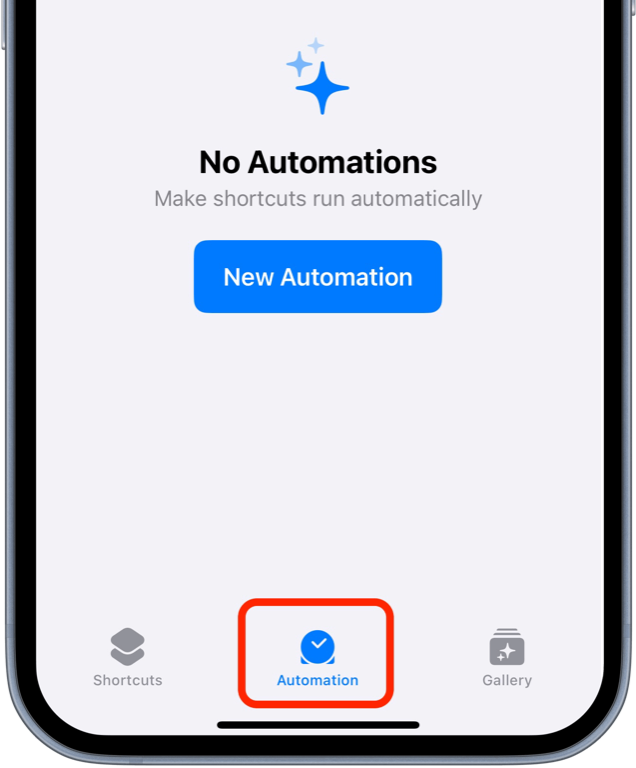
2. Select your existing Automation
Select the automation you have configured for Forward SMS.
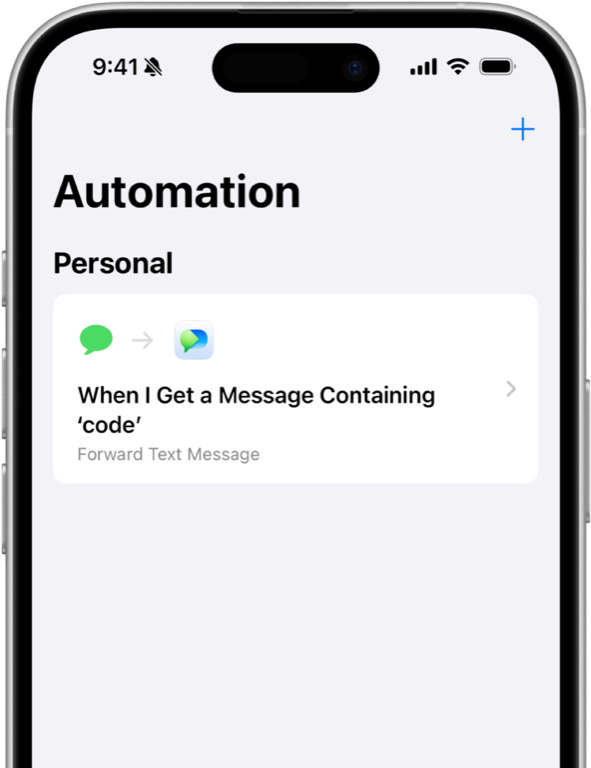
Tap the Forward Text Message action to edit the Shortcut.
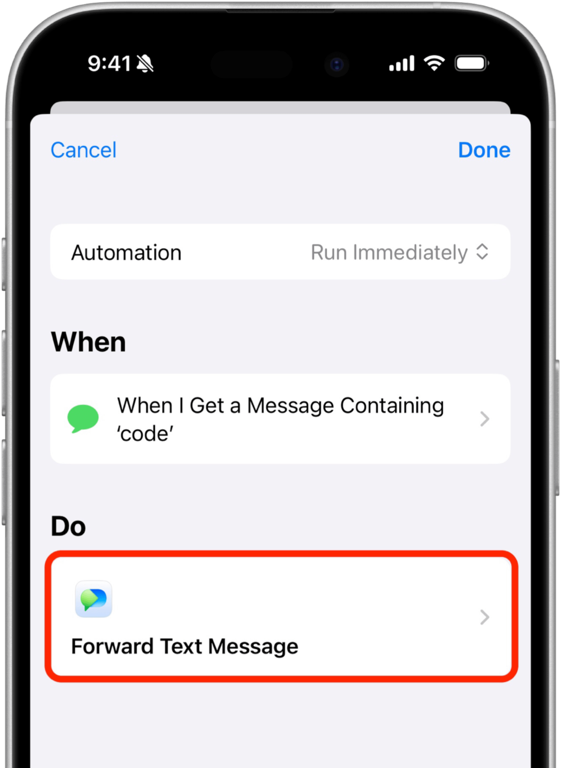
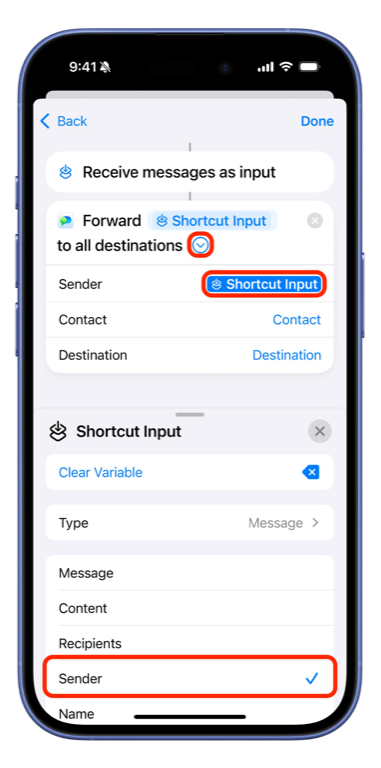
3. Configure the Sender Variable
Open the menu for additional configuration by tapping on the (>) icon.
- Set Sender to Variables > Shortcut Input
- Set it to Sender from the list of options.
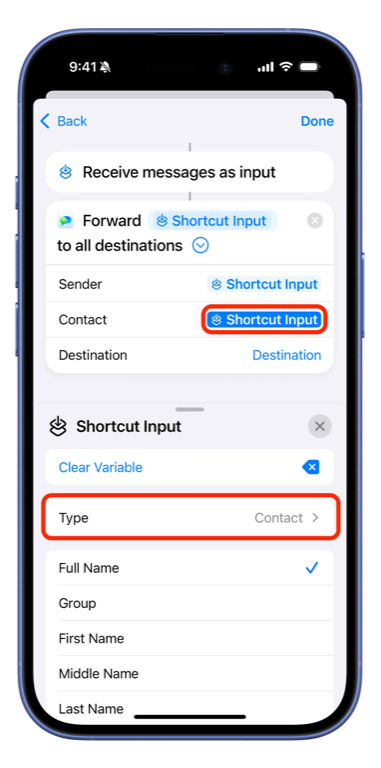
4. Configure the Contact Variable
- Set Contact to Variables > Shortcut Input
- Set the Type to Contact.
Conclusion
That's it. Now Forward SMS will also forward the Sender's phone number as well as the Contact's name with every message.
Note: The contact's name will only be matched if the phone number is saved in your address book in the same format using the country code (e.g +1 for US).