How to forward SMS text messages to Discord?
Quick Answer: To forward SMS to Discord, create a webhook in your Discord channel settings, copy the webhook URL, add it as a Discord destination in Forward SMS, then set up a Shortcuts automation. Messages appear in your Discord channel within seconds.
What is SMS to Discord Forwarding?
SMS to Discord forwarding automatically sends your text messages to a Discord channel. This is useful for gaming communities sharing promotional codes, teams managing shared 2FA accounts, or anyone who wants SMS notifications in their Discord server. Forward SMS uses iOS Shortcuts and Discord webhooks to send messages from your iPhone into Discord.
Discord is a popular platform for communities and teams, offering a wide range of features and integrations. With the Forward SMS app for iPhone, setting up SMS forwarding to Discord is simple. This is especially useful for receiving important messages, such as One-Time Passwords (OTPs) or 2-factor authentication (2FA) codes, directly in your Discord server to share with your team.
Why Forward SMS to Discord
Forwarding text messages to Discord opens up powerful use cases for teams and communities:
- Shared OTP/2FA codes: Teams managing shared accounts can instantly receive verification codes in a private Discord channel, eliminating the need to contact the phone owner for codes.
- Real-time alerts: Get instant notifications for delivery updates, appointment reminders, or bank alerts directly in Discord where your team is already active.
- Gaming communities: Share game-related SMS notifications like friend requests, tournament updates, or promotional codes with your gaming group.
- Business operations: Forward customer SMS inquiries to a support channel, or share payment confirmations with your finance team.
- Remote team coordination: Keep distributed teams in sync by forwarding important SMS notifications to shared channels.
Install Forward SMS
Download the newest version of Forward SMS from the App Store. This app lets iOS Shortcuts prepare incoming SMS messages for forwarding to your configured Discord destination.
Discord Webhook Setup
To forward messages to Discord, you'll need to create a Webhook in your Discord channel. Webhooks allow external applications to send messages to your Discord server. Here's a detailed walkthrough:
Step 1: Open Server Settings
Open Discord and navigate to the server where you'd like to receive forwarded messages. Click on the server name at the top-left to open the dropdown menu, then select Server Settings.
Step 2: Navigate to Integrations
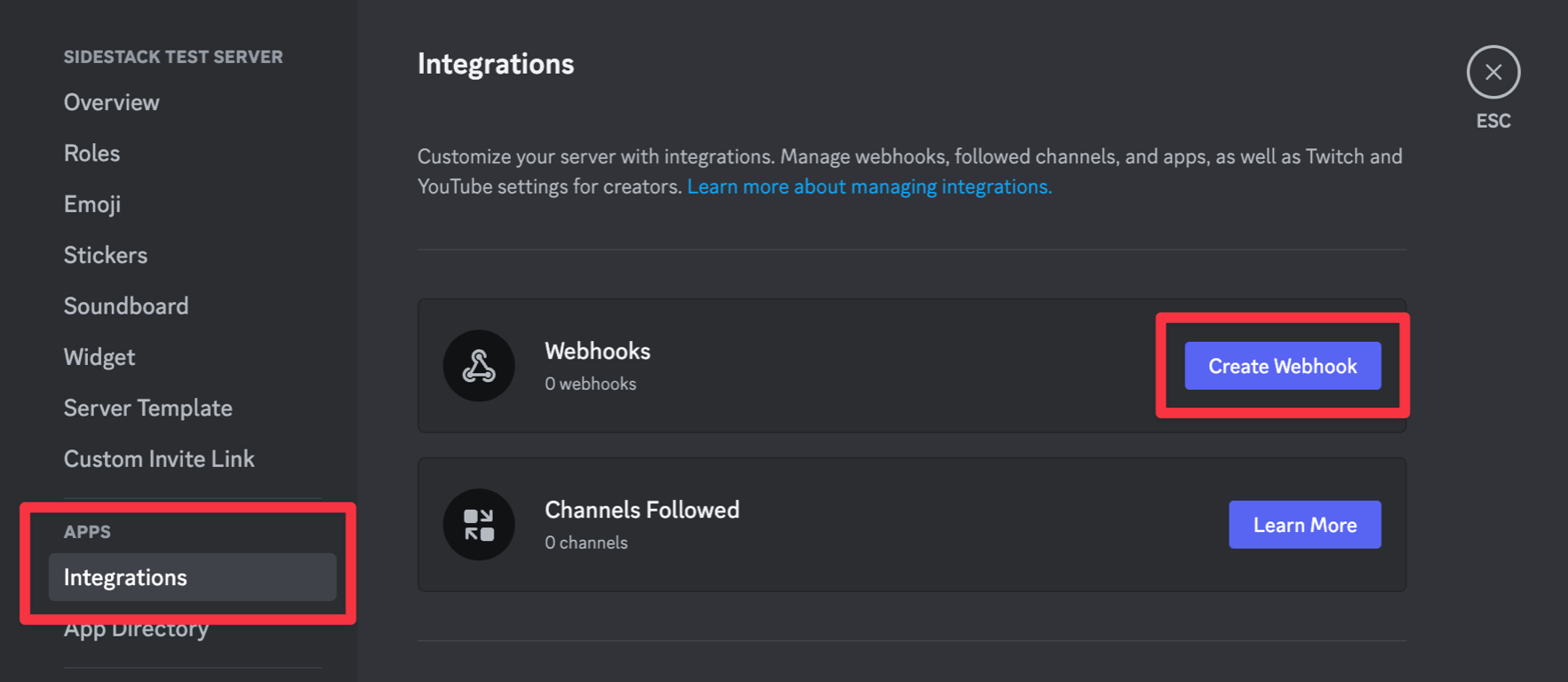
In the Server Settings sidebar, scroll down and click on Integrations. This is where you can manage all external connections to your server, including webhooks.
Step 3: Create a New Webhook
Click on Webhooks, then click the New Webhook button. Discord will create a new webhook with a default name like "Spidey Bot".
Step 4: Configure Your Webhook
- Name your webhook: Give it a descriptive name like "SMS Forwarder" so you can easily identify it later.
- Select the channel: Choose which text channel should receive the forwarded messages. Consider creating a dedicated channel like #sms-alerts for better organization.
- Copy the Webhook URL: Click the Copy Webhook URL button. This URL is what you'll paste into Forward SMS.
Security tip: Keep your webhook URL private. Anyone with this URL can post messages to your channel.
Create a new Destination in Forward SMS
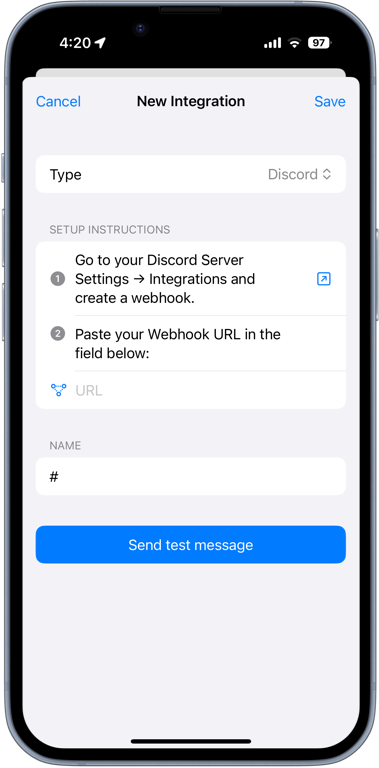
Once your Webhook is ready, create a new Discord destination in Forward SMS. Copy and paste the Webhook URL from the previous step.
Setup Messsage Automation
After setting up your Shortcuts Automation, you'll start receiving messages in your Discord channel!
Troubleshooting Common Issues
Having trouble with your Discord SMS forwarding? Here are solutions to the most common issues:
Messages Not Appearing in Discord
- Check your webhook URL: Make sure you copied the complete webhook URL from Discord. It should start with
https://discord.com/api/webhooks/. - Verify the channel permissions: Ensure the webhook has permission to post in the selected channel.
- Check your internet connection: Your iPhone needs an active internet connection to forward messages.
Delayed Message Forwarding
- iOS Background App Refresh: Go to Settings > General > Background App Refresh and ensure it's enabled for Forward SMS.
- Low Power Mode: Disable Low Power Mode as it can delay background operations.
- Notifications: Make sure Forward SMS has permission to run automations without confirmation.
Webhook Stopped Working
- Webhook deleted: If someone deleted the webhook in Discord, you'll need to create a new one and update it in Forward SMS.
- Server changes: If the channel was deleted or renamed, the webhook may stop working. Create a new webhook in the correct channel.
Messages Appearing Incorrectly Formatted
- Character limits: Discord has a 2000-character limit per message. Very long SMS messages may be truncated.
- Special characters: Some special characters may display differently in Discord.
Conclusion
By following these steps, you can now automatically forward your text messages from your iPhone to Discord. Making sure you instantly forward important text messages to your team in Discord.
For other forwarding options, check out our guides for Email, Slack, Microsoft Teams, and custom Webhook endpoints.
FAQ
Can I forward SMS to multiple Discord channels?
Yes, you can forward messages to multiple Discord channels by creating multiple destinations in Forward SMS. Each destination can have its own webhook URL pointing to a different channel. You can also set up filters to route specific messages to specific channels.
Is there a delay in forwarding SMS to Discord?
Messages are typically forwarded within seconds of being received. However, slight delays may occur due to network conditions or iOS background processing. Ensure Background App Refresh is enabled for optimal performance.
Does SMS forwarding to Discord work with group messages?
Yes, Forward SMS can forward group messages (MMS) to Discord. The sender information and message content will be included in the forwarded message.
Can I customize how messages appear in Discord?
The messages are sent using Discord's webhook format, which includes the sender's phone number and the message content. The webhook name and avatar you set in Discord will be displayed as the sender.
Will forwarding SMS to Discord drain my battery?
Forward SMS is designed to be battery-efficient. It uses iOS's native Shortcuts automation to forward messages, which has minimal impact on battery life. The app itself doesn't need to run in the background continuously.
Can I forward SMS to a Discord DM instead of a channel?
No, Discord webhooks only work with server channels, not direct messages. However, you can create a private channel and add only yourself or specific team members to achieve a similar result.
Does it work when my phone is locked?
Yes, as long as you've set up the Shortcuts automation to run without confirmation, messages will be forwarded even when your iPhone is locked.