How to Forward SMS Text Messages to WhatsApp
Quick Answer: To forward SMS to WhatsApp, download Forward SMS, create a Shortcuts automation with a Message trigger, add the Forward SMS action, then add a "WhatsApp Send Message" action with your destination contact. Messages will be forwarded automatically.
Looking for the feature overview rather than the step-by-step? See our SMS to WhatsApp landing page for use cases, supported chat types, and the full picture of how it works.
What is SMS to WhatsApp Forwarding?
SMS to WhatsApp forwarding automatically redirects your text messages to a WhatsApp chat or group. This is useful when traveling internationally (to avoid SMS roaming fees), consolidating messages from multiple phone numbers, or sharing verification codes with family members. Forward SMS uses iOS Shortcuts to trigger WhatsApp's native messaging action.
With the Forward SMS app and Apple's built-in  Shortcuts app, you can create an automated system to redirect your SMS text messages to WhatsApp. This guide will walk you through the process of setting up SMS message redirection from your iPhone to WhatsApp.
Why Forward Text to WhatsApp
While WhatsApp has become a primary messaging platform for billions of users, many important communications still arrive via SMS: bank alerts, delivery notifications, verification codes, and appointment reminders. Forwarding these messages to WhatsApp lets you consolidate all your communications in one place.
Personal Use
- Travel convenience: When traveling internationally, roaming SMS can be expensive or unreliable. Forward important messages to WhatsApp to receive them over WiFi.
- Phone transition: Switching between phones? Forward SMS from your old number to WhatsApp on your new device.
- Message backup: Keep a WhatsApp record of important SMS messages for easy searching and reference.
- Dual SIM management: Consolidate messages from multiple phone numbers into a single WhatsApp conversation.
Business Use
- Team collaboration: Share verification codes and alerts with team members via WhatsApp groups instead of sharing phone access.
- Customer service: Forward customer SMS inquiries to WhatsApp for faster team response and better tracking.
- Shift handoffs: Ensure critical messages reach the right team member regardless of who has the company phone.
- Multi-location management: Forward SMS from different business phone numbers to a central WhatsApp group.
Family Coordination
- Elderly parent support: Forward important SMS alerts from a parent's phone to your WhatsApp to help monitor appointments, prescriptions, and bank alerts.
- Child safety: Forward delivery or ride notifications from a child's phone to parents' WhatsApp.
- Shared family accounts: Route verification codes for shared streaming or shopping accounts to a family WhatsApp group.
- Emergency contacts: Ensure critical SMS messages reach multiple family members simultaneously.
SMS Forwarding vs WhatsApp Native Features
You might wonder why you need SMS forwarding when WhatsApp already offers messaging. Here's how they compare:
| Feature | SMS | WhatsApp | |---------|-----|----------| | Delivery notifications | ✓ Primary method used by carriers | Limited support | | Bank alerts | ✓ Required by most banks | Rarely supported | | Verification codes (OTP/2FA) | ✓ Industry standard | Growing but limited | | Works without internet | ✓ Yes | ✗ Requires WiFi/data | | Cross-platform sharing | ✗ Single device | ✓ Groups and broadcast | | Message search | Limited | ✓ Full-text search | | Read receipts | Carrier-dependent | ✓ Built-in |
The bottom line: SMS forwarding to WhatsApp combines the reliability of SMS delivery with WhatsApp's superior sharing and organization features.
SMS to WhatsApp Automation Setup
Now let's walk through the setup process. First, download the Forward SMS app from the App Store. This app will handle the orchestration of your SMS messages to WhatsApp.
Step 1: Launch the Shortcuts App and Open Automations
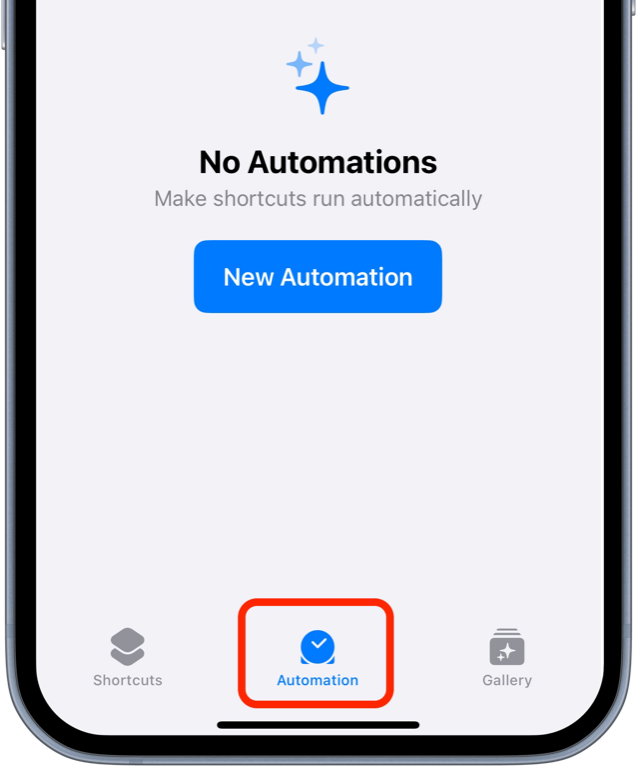
Begin by opening the Shortcuts app on your iPhone, then tap on the Automation tab at the bottom.
Step 2: Create a New Automation with a Message Trigger
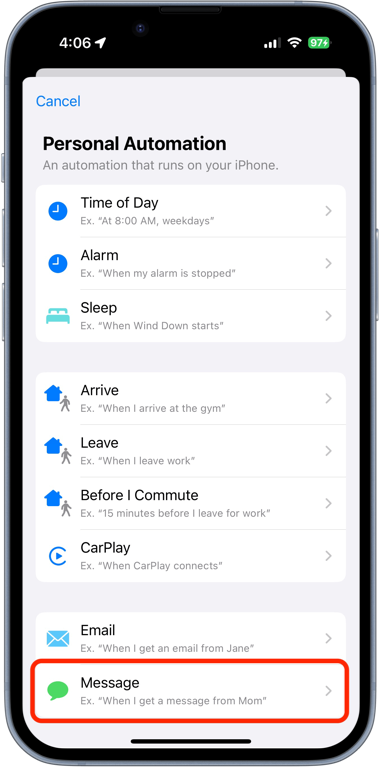
Tap Create Personal Automation and select the Message trigger from the list of options.
Step 3: Customize the Message Trigger
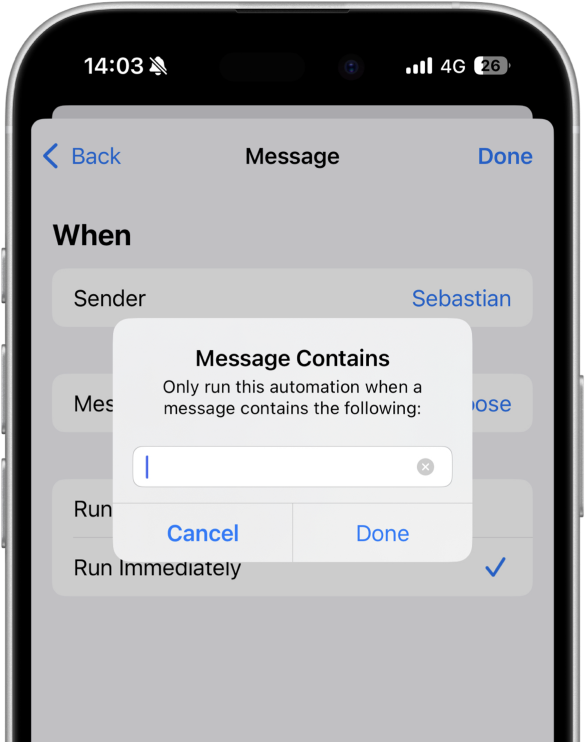
You can customize which SMS messages to redirect by setting specific filters:
Redirect All SMS Messages
Set the Message Contains condition to a single space (tap the space bar once) to redirect all text messages or use a specific keyword like "verification code".
Redirect Messages from Specific Senders
Use the Sender option to redirect messages only from specific contacts or phone numbers.
Step 4: Add the Forward SMS Action
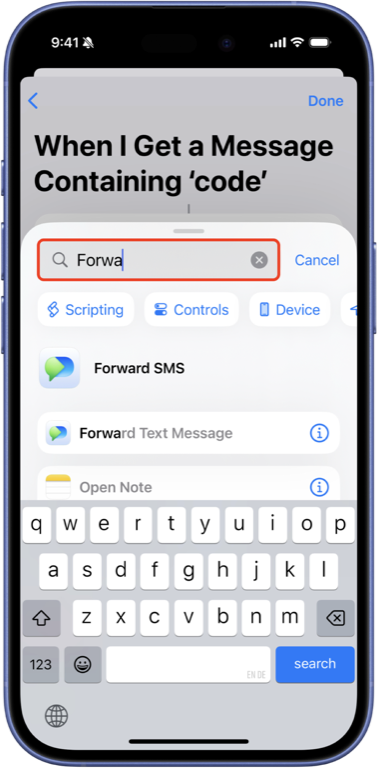
After setting up the trigger, tap Next and then tap Add Action. Search for the "Forward SMS" action and select it to add it to your automation.
Step 5: Configure the Forwarding Action
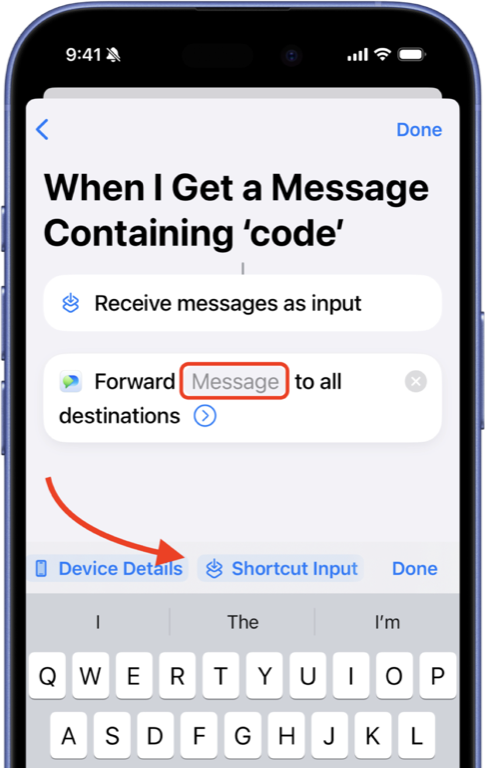
Tap the Message field in the Forward SMS action. Scroll to the right on the toolbar above the keyboard and select Shortcut Input to use the incoming message as input.
Step 6: Add the WhatsApp Action
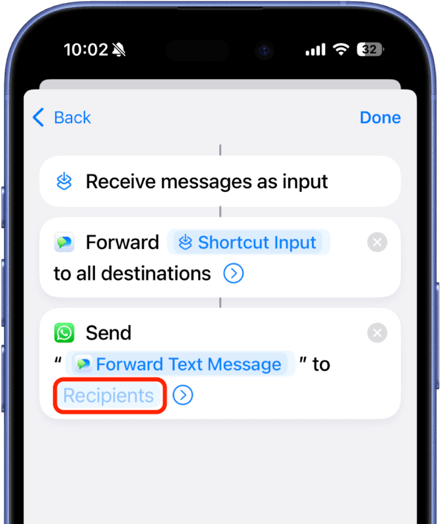
After setting up the Forward SMS action, you need to add a WhatsApp action to redirect the message:
- Tap the search bar at the bottom of the screen to add another action
- Search for WhatsApp and select Send Message
- In the Recipients field, enter the WhatsApp contact or phone number you want to redirect messages to
Conclusion
By following these steps, you can successfully set up SMS text message forwarding from your iPhone via WhatsApp.
To also redirect the phone number and name of the sender, check out our guide on Sender and Contact Forwarding.
For other forwarding options, check out our other guides: