How to forward SMS text messages to Yaho Mail?
Quick Answer: To forward SMS to Yahoo Mail, download Forward SMS from the App Store, add your Yahoo Mail address as a destination, then create a Shortcuts automation with a Message trigger. Your text messages will automatically appear in your Yahoo Mail inbox within seconds.
What is SMS to Yahoo Mail Forwarding?
SMS to Yahoo Mail forwarding automatically sends copies of your text messages to your Yahoo Mail inbox. This is useful for keeping a searchable archive of important messages, accessing SMS on your computer, or sharing OTP codes with team members via email. Forward SMS uses the built-in iOS Shortcuts automation to send messages from your iPhone through your configured Yahoo Mail account.
Your iPhone's  Shortcuts app includes a powerful Automations feature, which allows you to create triggers for automating tasks. By combining this feature with the Forward SMS app, you can easily automate forwarding your SMS messages to a Yahoo Mail address.
Step 1: Install Forward SMS
Start by downloading the latest version of Forward SMS from the App Store. This app enables automatic text message forwarding using iPhone Shortcut Automations.
Step 2: Set Up Email Destination in Forward SMS
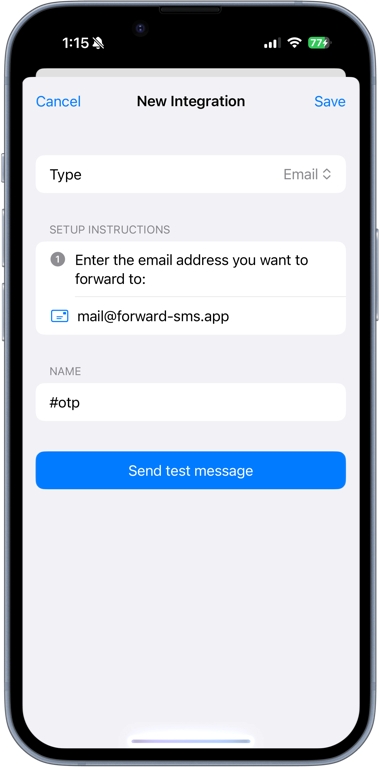
Open the Forward SMS app and create a new Email destination. Enter the Yahoo Mail address where you'd like your text messages to be forwarded, then tap Save.
You can verify the setup by tapping Send test message and ensuring the email is successfully received.
Step 3: Configure Text Message Automation in Shortcuts
Finally, set up the Shortcuts Automation to forward incoming text messages. For detailed instructions on this step, check out our guide: How to set up SMS forwarding on iPhone.
By following these steps, you can ensure your iPhone forwards text messages to your Yahoo Mail automatically, saving time and effort.